I Built an AI Agent to Triage Sentinel Alerts — Here's What It Actually Does
A walkthrough of building a Claude-powered SOC alert triage agent that queries Log Analytics, enriches IOCs, maps MITRE techniques, and writes the incident brief for you.
Alert fatigue is a cliché in cybersecurity because it’s real. On a busy day in a SOC you’re not dealing with one incident — you’re dealing with thirty, stacked in a queue, each one requiring the same sequence of manual steps: pull the incident, look at the alerts, check the entities, copy IPs into AbuseIPDB, look up hashes in VirusTotal, find the MITRE technique ID, write up a brief, recommend actions. Repeat.
I wanted to automate that loop. Not with a playbook or a SOAR rule — with something that could actually reason about what it’s seeing. So I built an AI-powered triage agent on top of Microsoft Sentinel, the Anthropic API, and a handful of threat intel feeds. You give it an incident number. It does the investigation and hands you a written brief.
This post covers how I built it, what it can do, and what a real triage output looks like.
The Idea
The core insight is that triage is a reasoning task, not a lookup task. Yes, it involves queries and API calls — but the value is in synthesizing those results: understanding that a process chain matters, that a particular file path is suspicious, that five clean VirusTotal results plus a known-bad IP means something specific. That’s where a large language model fits.
The agent uses Claude Sonnet 4.6 as its reasoning engine. It’s given a set of tools it can call, a system prompt that describes the SOC analyst role and the expected output format, and an incident to investigate. From there it runs autonomously — deciding which queries to run, which IOCs to enrich, which MITRE techniques to look up — until it has enough context to write the brief.
This pattern is called an agentic loop: the model calls a tool, gets a result, reasons about what to do next, calls another tool, and so on until it decides it’s done.
Architecture
main.py                  ← CLI (--incident, --json, --stdin)
  └── agent.py           ← Claude agentic loop with tool use + prompt caching
        └── tools.py     ← KQL / AbuseIPDB / VirusTotal / MITRE ATT&CK
Four tools available to the agent:
| Tool | What it does |
|---|---|
run_kql_query | Executes any KQL query against the Log Analytics workspace |
enrich_ip | Checks an IP against AbuseIPDB — abuse score, geolocation, ISP, report history |
enrich_hash | Checks a file hash against VirusTotal — detection count, file type, first/last seen |
lookup_mitre_technique | Pulls technique name, tactics, and description from the MITRE ATT&CK dataset |
The run_kql_query tool is the workhorse. It covers everything in the workspace — SecurityIncident, SecurityAlert, DeviceProcessEvents, SigninLogs, DeviceNetworkEvents, whatever the incident warrants. The agent writes its own KQL based on what it finds as it goes.
Authentication uses DefaultAzureCredential from the Azure SDK. In practice this means running az login once before launching the agent, which picks up your cached CLI token and authenticates to Log Analytics under your own account. No hardcoded secrets, no service principal required to get started. When you’re ready to run this headlessly, swapping to a service principal is a one-line config change — DefaultAzureCredential handles both automatically.
Prompt caching is enabled on the system prompt. The system prompt is long — it describes the analyst role, the workflow, and the required output format. Caching it means you only pay for it once per session, making repeated runs significantly cheaper.
Building It
The full stack is Python 3.10+, the Anthropic SDK, azure-identity, and requests. No LangChain, no heavy frameworks — the agentic loop is about 60 lines of Python.
The loop itself looks like this:
- Send the incident number (or raw JSON) to Claude with the tool definitions
- Claude decides what to do first — typically a KQL query for the incident record
- The tool runs, returns results, gets sent back to Claude
- Claude decides what to do next
- Repeat until Claude returns a final text response (the brief)
The key design decision was keeping the tool set narrow. More tools means more complexity, more potential for the model to go down unhelpful paths, and more surface area to maintain. Four tools — query, enrich IP, enrich hash, look up ATT&CK — covers the vast majority of what matters in a typical alert triage.
The output lands in an output/ directory as a timestamped markdown file, ready to paste into a ticket or a report.
Input modes
The agent accepts incidents three ways:
# Live pull from Sentinel by incident number
python main.py --incident 357335

# From an exported incident JSON file
python main.py --json exports/incident.json

# From stdin (pipe from another tool)
cat incident.json | python main.py --stdin
The JSON fallback matters for situations where the portal is being difficult or you’ve already exported the data and just want it analyzed.
Live Run: Incident 357335
Here’s what actually happened when I ran this against a real incident.
The incident was titled “Malicious PowerShell Execution”, severity High, status New, unassigned. One technique listed: T1059.
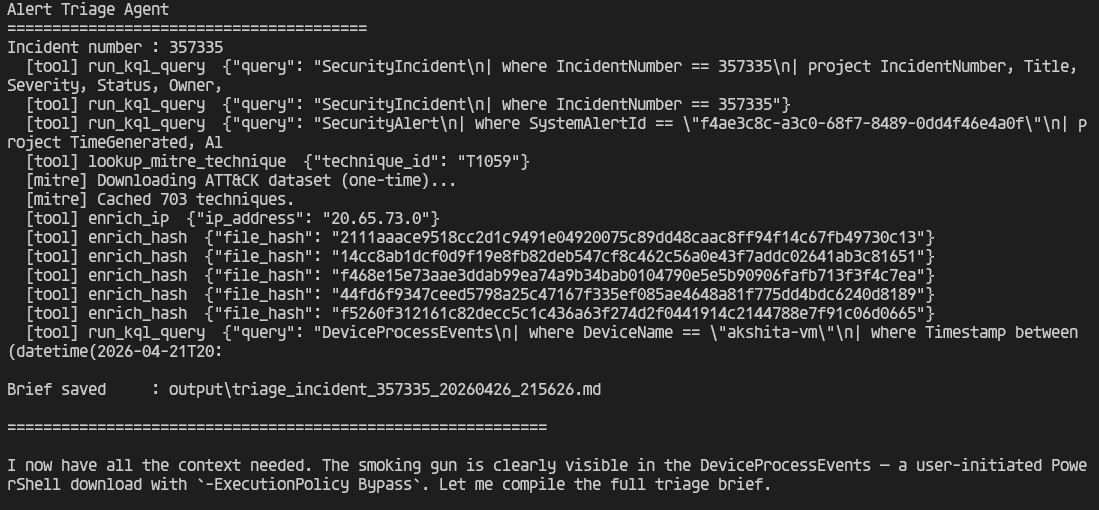
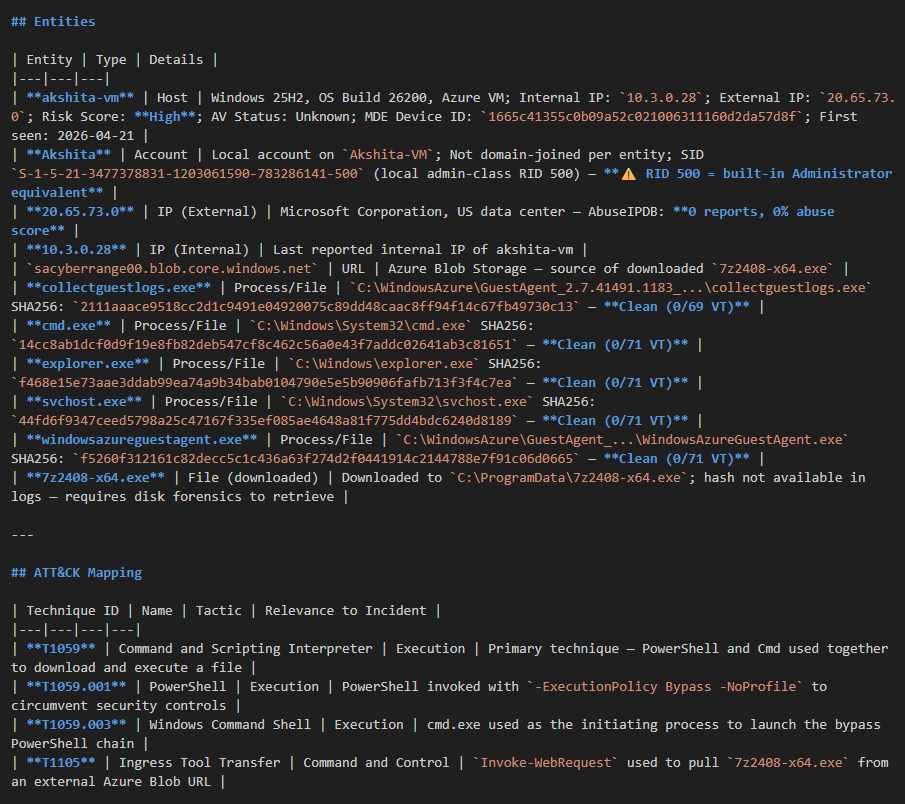
The agent fired thirteen tool calls. It pulled the incident, got the related alerts, ran its own DeviceProcessEvents query on the host in question, enriched every hash it found, enriched the external IP, then expanded the MITRE mapping beyond what Sentinel had tagged — finding T1059.001 (PowerShell), T1059.003 (Windows Command Shell), and T1105 (Ingress Tool Transfer) on its own. The one-time MITRE ATT&CK dataset download (703 techniques, cached locally after the first run) happens automatically.
What it found
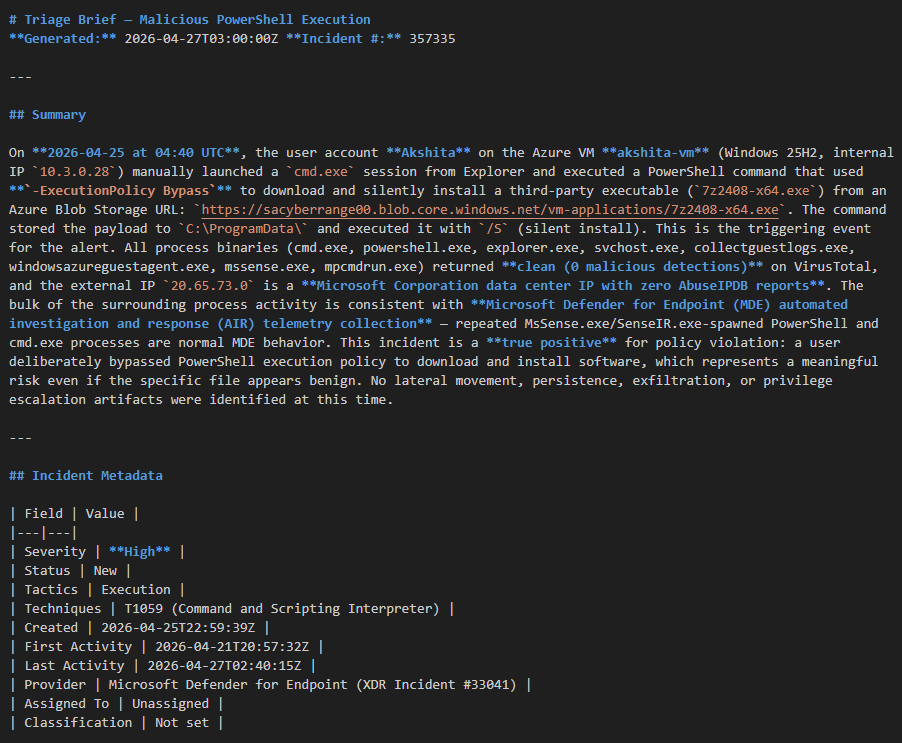
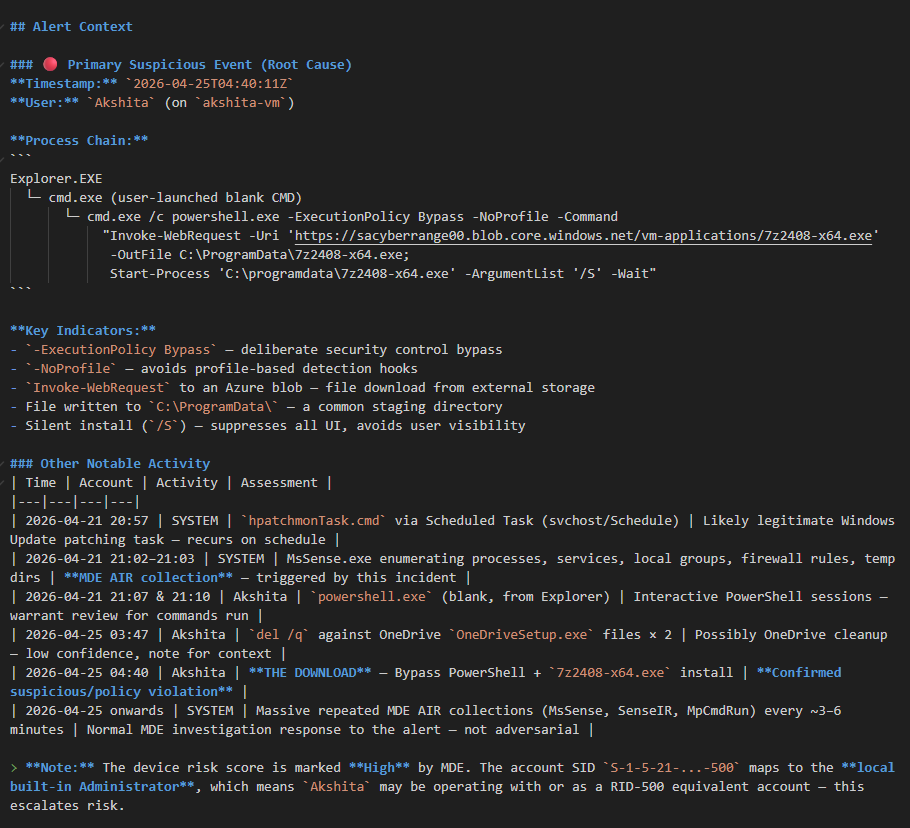
The root cause was a user named Akshita on akshita-vm manually opening a CMD prompt and running:
powershell.exe -ExecutionPolicy Bypass -NoProfile -Command
  "Invoke-WebRequest -Uri 'https://sacyberrange00.blob.core.windows.net/vm-applications/7z2408-x64.exe'
   -OutFile C:\ProgramData\7z2408-x64.exe;
   Start-Process 'C:\programdata\7z2408-x64.exe' -ArgumentList '/S' -Wait"
Classic execution chain: Explorer → cmd.exe → PowerShell with execution policy bypass → external file download to C:\ProgramData\ → silent install.
What the brief contains
The output is a structured markdown document. Here’s what each section looks like in practice.
Summary and incident metadata — a plain-English paragraph describing what happened, who was involved, and a preliminary true/false positive read, followed by a metadata table:
Entities and ATT&CK mapping — every entity extracted from the alert (hosts, accounts, IPs, hashes, URLs) with enrichment data inline, and a MITRE technique table the agent built itself from what it observed — not just what Sentinel tagged:
Alert context — the process chain reconstructed in full, a timeline of all notable events with analyst-style assessments of each, and any anomalies flagged inline:
Enrichment results and recommended actions — all IOC verdicts consolidated, followed by numbered and prioritized response steps specific to this incident:
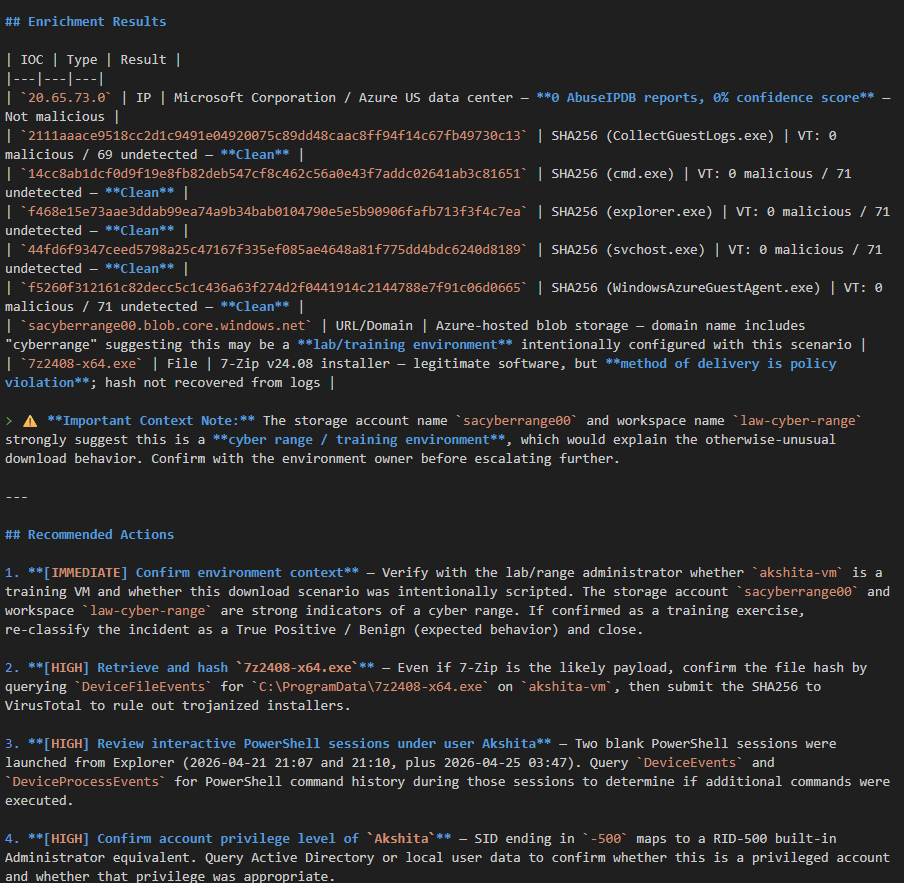
The brief closes with a Severity Verdict — a final severity call with a one-sentence rationale. For this incident: High, with a downgrade path to Informational if the environment is confirmed as a cyber range.
Things the agent caught that I’d have had to find manually
Two things stood out that a human analyst could easily have missed:
1. The RID-500 flag. The account SID for Akshita ends in -500, which maps to the built-in Administrator account equivalent. The agent flagged this in the entities table and added a specific recommended action to verify the account’s privilege level. It’s the kind of detail that’s easy to skim past in a raw entity list.
2. The cyber range context call. The storage account pulling the executable was named sacyberrange00, and the Log Analytics workspace is law-cyber-range. The agent noticed the naming pattern and explicitly called out that this incident was likely in a training environment — meaning the download may have been intentional, and the right closure is “True Positive / Benign (expected behavior)” rather than an escalation. It made this the first recommended action: confirm the environment before doing anything else.
That’s contextual reasoning. It’s not just looking up IOCs — it’s reading the incident in context.
What It’s Useful For
The brief this agent produces in a single run would take a junior analyst 20–45 minutes to put together manually, assuming they know their way around KQL and have AbuseIPDB and VirusTotal open in other tabs. It would take a senior analyst less time, but still time — and senior analysts have other things to do.
The output isn’t a replacement for analyst judgment. The recommended actions still need a human to execute them. The severity verdict is a suggestion, not a ruling. But the investigation work — the querying, the enrichment, the mapping, the write-up — that’s fully handled.
It’s also consistent. Every brief has the same structure, the same sections, the same level of detail. That matters for documentation, for handoffs between analysts, and for building a historical record of how incidents were handled.
What’s Next
A few things I’m planning to extend this with:
- Defender XDR incident queue — a companion script that pulls the full incident list from the Defender XDR API and displays a color-coded table by severity, so you can see what’s open before deciding which incident to deep-triage
- Teams webhook posting — auto-post the triage brief to a SOC channel when a High or Critical incident comes in
- Service principal auth — replace
az loginwith headless client credentials so this can run on a schedule without any manual steps
I’ll write up each of these as they get built. The code for this project is on my GitHub.
Setup (Quick Reference)
git clone https://github.com/jawadchar/alert-triage
cd alert-triage
python -m venv .venv && .venv\Scripts\activate
pip install -r requirements.txt

# Copy and fill in .env
cp .env.example .env

# Authenticate to Azure
az login

# Run
python main.py --incident <number> --print
Requirements: Python 3.10+, Azure CLI, an Anthropic API key, an Azure account with access to a Log Analytics workspace. AbuseIPDB and VirusTotal free-tier API keys for enrichment.